 Save to del.icio.us
Showing posts with label lists. Show all posts
Showing posts with label lists. Show all posts
Wednesday, August 15, 2007
Graphic Novels
I've written previously—including illustrated how-to's—about resource lists in our catalog. Now I just want to point out a cool list that Lisa created for our extensive collection of graphic novels. Because of the quirks of our cataloging system, it's not incredibly obvious how to generate such a list, but now you'll always be able to find one among the Resource Lists in our catalog or from the "Teens" section of our website.
Saturday, June 16, 2007
What are Your Favorites?
Our catalog just got a whole lot better, and now you can get in on the action by sharing a list of your favorites with other patrons. Here's how it works:
When you're logged into the catalog, go to the "Resource Lists" area by clicking the link in the left-hand navigation. (Click here to see other posts in the blog about resource lists.) There you will see a summary of your lists. By default you should already have a list called "My Personal List."
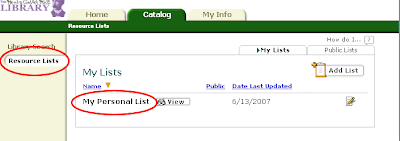
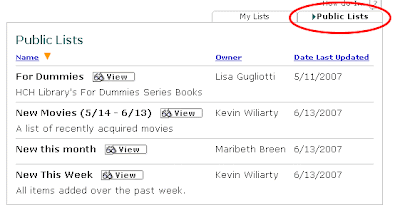
Notice that there are two tabs on the right at the top of the summary—one for "My Lists" and one for "Public Lists." Clicking on the "Public Lists" tab will take you to a summary of lists that users of our catalog have decided to share with everyone. There are a couple of lists already there that staffers have built, but now we've opened it up so that all registered patrons can publicize lists.
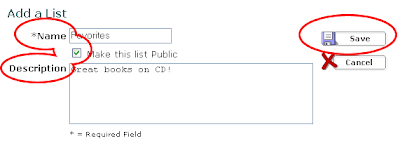
Here's how to create a public list.
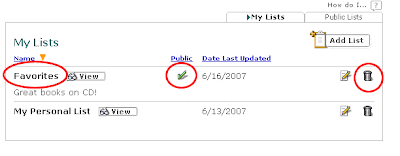
Your list will now show up in the summary of "My Lists." The green check-mark will indicate to you that the list is public. For other users of the catalog, but not for you, your list will show up under "Public Lists." Please note that you will be identified by your full name as the owner of the list. You can delete a list at any time by clicking on the trash can.
You can now browse the catalog to add books to your list. Here's how:
We're looking forward to seeing what people like!
When you're logged into the catalog, go to the "Resource Lists" area by clicking the link in the left-hand navigation. (Click here to see other posts in the blog about resource lists.) There you will see a summary of your lists. By default you should already have a list called "My Personal List."

Notice that there are two tabs on the right at the top of the summary—one for "My Lists" and one for "Public Lists." Clicking on the "Public Lists" tab will take you to a summary of lists that users of our catalog have decided to share with everyone. There are a couple of lists already there that staffers have built, but now we've opened it up so that all registered patrons can publicize lists.

Here's how to create a public list.
- Click on the "Add List" button in the upper right-hand corner of the "My Lists" summary box.

- Create a name for the list. "Favorites" for example.
- Check the box to make the list public.
- Optionally, you can provide a description of the list, like: "Great movies for kids" or "Mysteries I loved."
- Click save.


Your list will now show up in the summary of "My Lists." The green check-mark will indicate to you that the list is public. For other users of the catalog, but not for you, your list will show up under "Public Lists." Please note that you will be identified by your full name as the owner of the list. You can delete a list at any time by clicking on the trash can.

You can now browse the catalog to add books to your list. Here's how:
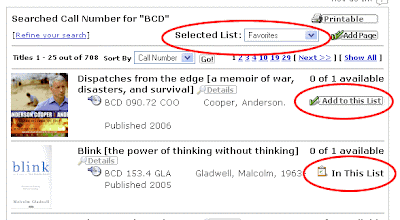
- On any page that lists items from our catalog you will find a drop-down box labeled "Selected List."
- Choose the list you want to add to from the drop-down list.
- Then click on the "Add to this List" button for the appropriate item. (If the item is already in the list, the button will read: "In This List.")

We're looking forward to seeing what people like!
Wednesday, June 13, 2007
New This Week
Hot on the heels of the new movies list, we have decided to add another public list that will show all new titles added over the past week. See the previous post for instructions about how to find all the public lists in our catalog, or just click here to go straight to "New This Week".
New Acquisitions
Many of you have expressed interest in lists of our new movies, our new mystery books, etc. We have some printed lists in the respective areas on the first floor, but it would be desirable to automate the process as much as possible and to make the lists available via the web as well as in print.
It turns out that our catalog's "resource lists" (described in a previous post) give us some of that functionality.
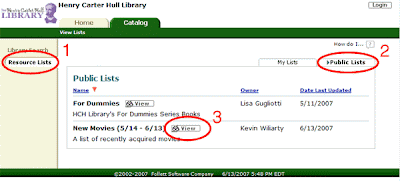
You can see a list of new movies I put together by clicking here. Or you can always navigate to our public lists from our catalog by clicking "Resource Lists" on the left and then, on the far right, clicking the "Public Lists" tab. You should see a couple options including one for new movies. Click "View" to see the items. You can then click "Details" for more information, including availability.
Right now the process is rather clumsy and laborious, but we'll keep working on improving it, automating it, making it more flexible.
It turns out that our catalog's "resource lists" (described in a previous post) give us some of that functionality.
You can see a list of new movies I put together by clicking here. Or you can always navigate to our public lists from our catalog by clicking "Resource Lists" on the left and then, on the far right, clicking the "Public Lists" tab. You should see a couple options including one for new movies. Click "View" to see the items. You can then click "Details" for more information, including availability.

Right now the process is rather clumsy and laborious, but we'll keep working on improving it, automating it, making it more flexible.
Saturday, May 19, 2007
Personal Book Lists

Every run across a book in our catalog and think: "I'd really like to read that some day, but not right now?" And then you wonder how you will ever remember the title.
Or maybe there's a book that you'd really like to remember to pick up the next time you're at the library, only how will you ever think of it when you're actually here?
Or maybe you're doing some research using our catalog, finding lots of potential books, and wishing you didn't have to write down all the titles and call numbers until you knew which ones you really wanted.
Or maybe you'd just like to keep a list somewhere of the movies you've seen so that you don't accidentally get the same one twice. (You know it happens!)
Our new catalog offers solutions to each of these problems in the guise of "Personal Lists." Here's how it works:
First of all, you need to be logged in. You can find instructions for logging in in my post on online renewals.
Next, you need to find the item you're looking for in our catalog and click through to the main page for that item.
On that page, in about the middle, you'll see a button labeled "Add to this List." (To the left of the button you should see: "Selected List: My Personal List.")

Once you've added an item, the "Add to this List" button will convert to "In this List," so that you will know without even going to your list whether or not a particular item is already on it.

To view your list, you'll need only to click on the (admittedly less than obvious) "Resource Lists" link in the left-hand navigational column:

The next screen will show a list of your "Lists." You should only have one. To see the contents, click the "View" button:

Now that you're viewing your list, you can sort it by various criteria, jump to the details for any item, remove items, get a printer-friendly version, and even generate a bibiliography or citation list. The last tool is a great help to students!

And because your list is stored on the web, you can get to it from any computer with Internet access! Add an item to you list from home, then refer to it while you're at the library. No problem.

Subscribe to:
Posts (Atom)